Sep 2, 2026
How Dynamic Resolution Scaling Improves Video Call Quality
how-dynamic-resolution-scaling-improves-video-call-quality

If your video call quality drops, dynamic resolution scaling helps keep the call going. I’d sum it up like this: the system watches bandwidth, latency, packet loss, and device load, then lowers or restores resolution, bitrate, and frame rate so audio stays clear and the call does not stall.
Here’s the short version:
A 720p, 30 fps stream uses about 304 kbps
A support call with video, screen sharing, and audio can need about 680 kbps
When bandwidth falls, DRS can move video down to 360p or 180p
In group calls, an SFU can send each person a different video layer
For support teams, the usual goal is simple: keep audio first, keep video usable, avoid freezes
I’d also keep these setup rules in mind:
Use three video layers: 1280×720, 640×360, and 320×180
Keep 720p above 400 kbps
Use 360p from 150–400 kbps
Drop to 180p below 150 kbps
Scale down fast, but scale back up only after the connection stays stable for a short time
That last point matters a lot. If quality jumps up and down every few seconds, the call can feel worse than staying a bit softer for longer. A steady call usually beats a sharp call that keeps freezing.
For support use cases, I’d treat 360p as the default middle ground, keep separate rules for screen sharing, and test for mobile data, home Wi‑Fi, office Wi‑Fi, and group calls before rollout.
Below, I’ll walk through what DRS does, how it works in WebRTC calls, and how to set it up for support sessions without overcomplicating it.
How dynamic resolution scaling works in real time
WebRTC systems watch the connection and the device in real time, then adjust the stream before the experience starts to fall apart. The goal is simple: keep the call stable, clear, and in sync as conditions change.
The signals the system monitors
WebRTC-based systems track four main signals: available bandwidth, round-trip time (latency), packet loss, and device load, including CPU and rendering performance. When any of these signals changes, the system reacts.
If packet loss goes up or bandwidth drops, the system can step down to a lower resolution layer, such as 360p or 180p, before the call starts freezing. And when someone is on a low-power device, or CPU-heavy features are running, the system scales video down to keep the session steady.
How bitrate, resolution, and frame rate work together
Those same signals also shape how bitrate, resolution, and frame rate shift together. These three settings are tied to each other, so changing one affects the others.
Lower resolution means less data to send. A lower frame rate makes motion less smooth. And a lower bitrate means the image gets compressed more heavily.
In support calls, steady audio and video sync usually matter more than keeping the highest resolution. That’s why audio stays first in line, so the conversation remains clear even when video quality drops.
Where simulcast and SFUs fit
In multi-participant calls, the same scaling logic carries over through simulcast and an SFU. In Auvious Video group calls, an SFU routes each participant the quality layer their connection can handle, so one participant on a weak connection gets lower-quality video without affecting anyone else’s experience.
How dynamic resolution scaling improves the call experience
Those split-second changes matter because users don't care much about protocol mechanics. They care about whether the call keeps working.
When bandwidth dips, a fixed video stream tends to buffer or freeze. DRS gives the system room to react. It can shift the video to a lower-resolution layer and keep the session moving. The picture might look a little softer for a moment, but the call stays usable. And that's what people notice first: fewer interruptions, less hassle, and a smoother conversation.
Fewer freezes, less buffering, and steadier audio-video sync
Audio can stay clear even when video quality drops, so the conversation doesn't fall apart. That kind of continuity helps avoid the frustrating back-and-forth that can derail support calls.
Better results on mobile, shared Wi-Fi, and multi-participant calls
DRS responds fast when bandwidth changes, which helps prevent the call from stalling. On shared Wi-Fi, it adjusts the stream to whatever bandwidth is still available, cutting buffering without asking the user to change a thing. In multi-participant calls, one person can shift down to a lower resolution without throwing off the call for everyone else.
This matters a lot in support sessions. Picture a customer trying to show a device or a document with their phone's rear camera. A slightly blurry but steady video feed is much more useful to an agent than a frozen high-resolution frame.
With DRS, quality dips tend to be short and controlled. Without it, the same network drop is more likely to trigger freezes, lag, or lost audio.
The next step is choosing resolution layers and switching rules that keep those gains steady.
How to configure dynamic resolution scaling for support use cases
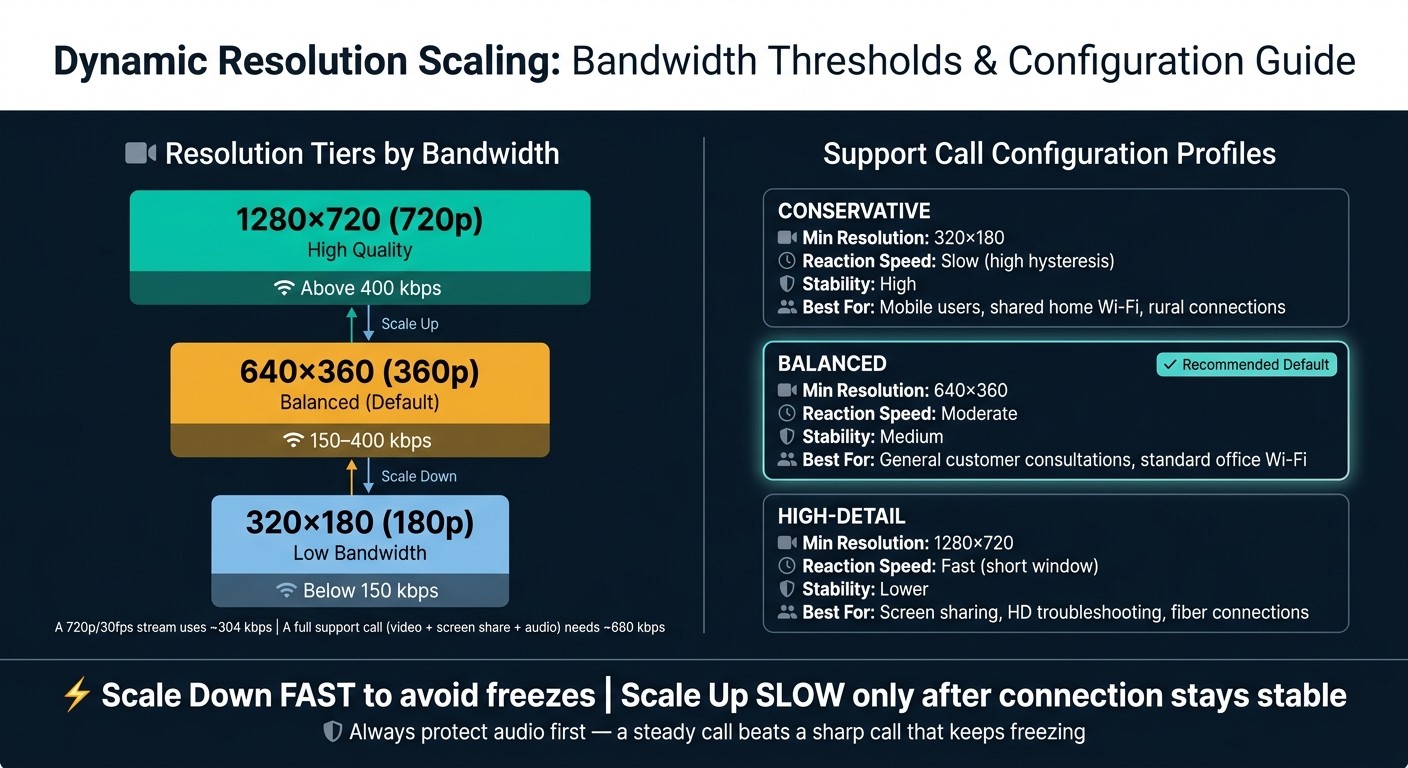
Dynamic Resolution Scaling: Bandwidth Thresholds & Profile Guide
Set up DRS for the way support calls actually happen, not for perfect lab conditions. The goal is simple: keep the call usable when the connection gets shaky, without making video quality jump up and down every few seconds.
Set practical resolution layers and thresholds
For most support teams, three resolution layers are enough.
1280x720 for normal face-to-face consultations
640x360 as the middle step when bandwidth drops
320x180 as the lowest layer to keep the session running on very weak connections
Each layer should map to its own bitrate range, so the platform knows when to switch. And one rule matters more than the rest: protect audio first. If users can still hear each other, the call can continue even when video takes a hit.
Screen sharing should follow its own preset. Don’t squeeze it into the same logic as camera video. Text-heavy support sessions have different needs, and they usually need a sharper image for longer.
Hold 720p above 400 kbps, use 360p from 150–400 kbps, and drop to 180p below 150 kbps.
Prevent rapid quality switching with stable rules
The most common mistake is switching quality too fast. When that happens, the stream can bounce between 360p and 720p every time bandwidth moves a little. That kind of back-and-forth is often worse than staying at 360p for a bit longer.
That’s where hysteresis comes in. It means the system shouldn’t upgrade the stream the second bandwidth ticks up. Instead, bandwidth needs to stay above the threshold for a set window before resolution goes back up.
The better pattern is:
downscale fast to avoid freezes
upscale only after the connection has recovered and stayed there briefly
This helps a lot on shared home Wi-Fi and mobile networks, where short dips and spikes happen all the time.
Test profiles for real support environments
Before rollout, test DRS against the places your users are calling from. A customer on rural 4G is dealing with a very different connection than an agent in an office on wired internet, especially during a screen-sharing support session. The table below shows three profile types worth testing.
Profile | Min. Resolution | Reaction Speed | Stability | Best-Fit Use Case |
|---|---|---|---|---|
Conservative | 320x180 | Slow (high hysteresis) | High | Mobile users, shared home Wi-Fi, unstable rural connections |
Balanced | 640x360 | Moderate | Medium | General customer consultations, standard office Wi-Fi |
High-detail | 1280x720 | Fast (short window) | Lower | Screen sharing, HD troubleshooting, high-speed fiber connections |
For most customer calls, the balanced profile is the safe default. Keep the high-detail profile for screen-sharing sessions where sharper text makes a big difference.
These baseline profiles set up the Auvious Video session types that matter most.
Applying dynamic resolution scaling in Auvious Video and key takeaways
Where DRS matters most in Auvious Video sessions
In Auvious Video, DRS matters most when support sessions combine camera video, screen sharing, and AI tools. Agents may be handling audio, video, and screen sharing at the same time. Add co-browsing, AR pointer guidance, or real-time speech-to-text, and the connection has even more to carry.
That’s the moment when DRS does its job. In co-browsing and screen-sharing sessions, agents can use AR pointers or drawing tools to guide customers. If bandwidth drops, DRS can lower video resolution so screen sharing and audio stay responsive. In AI-assisted calls, stable video also helps the system read visual context in real time, such as a customer’s gesture or an object shown on camera.
The same kind of protection helps on weaker customer connections. Mobile customers on Android or iOS often deal with changing signal strength. DRS keeps sessions usable by lowering resolution automatically.
Conclusion: the simplest way to protect call quality under changing conditions
DRS protects call quality by adjusting to the network, keeping audio clear, and bringing video quality back up when conditions improve.
FAQs
When should a call switch between 720p, 360p, and 180p?
A call should switch on its own based on the bandwidth available so it stays stable. When there’s enough bandwidth, it remains at 720p for a clear picture.
If the connection gets weaker or the network becomes congested, it drops to 360p or 180p. The goal is simple: keep the audio going and cut the risk of dropped calls.
In Auvious Video, these changes happen in real time with no manual action needed.
Why is hysteresis important in dynamic resolution scaling?
Hysteresis matters because it stops rapid “thrashing” between resolution levels when network conditions bounce around. That keeps video more stable and the call experience smooth.
Instead of changing quality every time bandwidth moves up or down, it sets deliberate switching thresholds. So the system only steps up or down when those conditions stick around for a bit.
Should screen sharing use different scaling rules than camera video?
Yes. Screen sharing and camera video should follow different scaling rules because they’re separate media streams, and each one usually aims for a different resolution and frame rate.
For example, camera video might run at 720p at 30 fps, while screen sharing runs at 1080p at 15 fps. That split helps dynamic resolution scaling protect overall call quality when both streams are active.